

Chinese (China)普通话女声
好创意,值得被全世界听见。使用 Mivo Sync,只需录制一次,就能自然地跨语言表达,让每一条信息都化为温暖、真实、依然属于你的声音。
0:00 / 0:12
Clone an authorized voice from a 3–30 second audio sample, then generate new speech in 10 supported languages.
好创意,值得被全世界听见。使用 Mivo Sync,只需录制一次,就能自然地跨语言表达,让每一条信息都化为温暖、真实、依然属于你的声音。

Your ideas deserve a voice that travels with them. With Mivo Sync, record once, speak naturally across languages, and turn every message into warm, authentic audio that still sounds unmistakably like you.

Your ideas deserve a voice that travels with them. With Mivo Sync, record once, speak naturally across languages, and turn every message into warm, authentic audio that still sounds unmistakably like you.

あなたのアイデアには、世界へ届く声が必要です。Mivo Syncなら、一度録音するだけで複数の言語を自然に話し、どんなメッセージも、あなたらしさを残した温かく本物の音声に変えられます。

당신의 아이디어에는 세상 어디든 닿는 목소리가 필요합니다. Mivo Sync로 한 번만 녹음하면 여러 언어로 자연스럽게 말하고, 모든 메시지를 당신만의 색깔이 살아 있는 따뜻하고 진정성 있는 음성으로 만들 수 있습니다.

Vos idées méritent une voix qui voyage avec elles. Avec Mivo Sync, enregistrez une seule fois, parlez naturellement dans plusieurs langues et transformez chaque message en un son chaleureux et authentique qui vous ressemble vraiment.

Ihre Ideen verdienen eine Stimme, die überall gehört wird. Mit Mivo Sync nehmen Sie nur einmal auf, sprechen ganz natürlich in mehreren Sprachen und verwandeln jede Botschaft in warmes, authentisches Audio, das unverkennbar nach Ihnen klingt.

Le tue idee meritano una voce capace di viaggiare lontano. Con Mivo Sync registri una sola volta, parli in modo naturale in più lingue e trasformi ogni messaggio in un audio caldo e autentico, sempre inconfondibilmente tuo.

Tus ideas merecen una voz que llegue tan lejos como ellas. Con Mivo Sync, graba una sola vez, habla con naturalidad en varios idiomas y convierte cada mensaje en un audio cálido, auténtico e inconfundiblemente tuyo.

Tus ideas merecen una voz que llegue a todas partes. Con Mivo Sync, graba una sola vez, habla con naturalidad en varios idiomas y convierte cada mensaje en un audio cálido, auténtico y con un estilo que sigue siendo totalmente tuyo.

Suas ideias merecem uma voz que chegue cada vez mais longe. Com o Mivo Sync, você grava uma única vez, fala com naturalidade em vários idiomas e transforma cada mensagem em um áudio acolhedor, autêntico e com a sua identidade.

Ваши идеи заслуживают голоса, который будет звучать по всему миру. С Mivo Sync достаточно одной записи, чтобы естественно говорить на разных языках и превращать каждое сообщение в тёплое, искреннее аудио, которое звучит именно как вы.
Upload 3–30 seconds of clean speech, type new words, and generate audio that follows the authorized speaker's vocal character. The same reference can speak in 10 supported output languages.
A short reference clip can become new narration for creator videos, product updates, lessons, and localized campaigns.
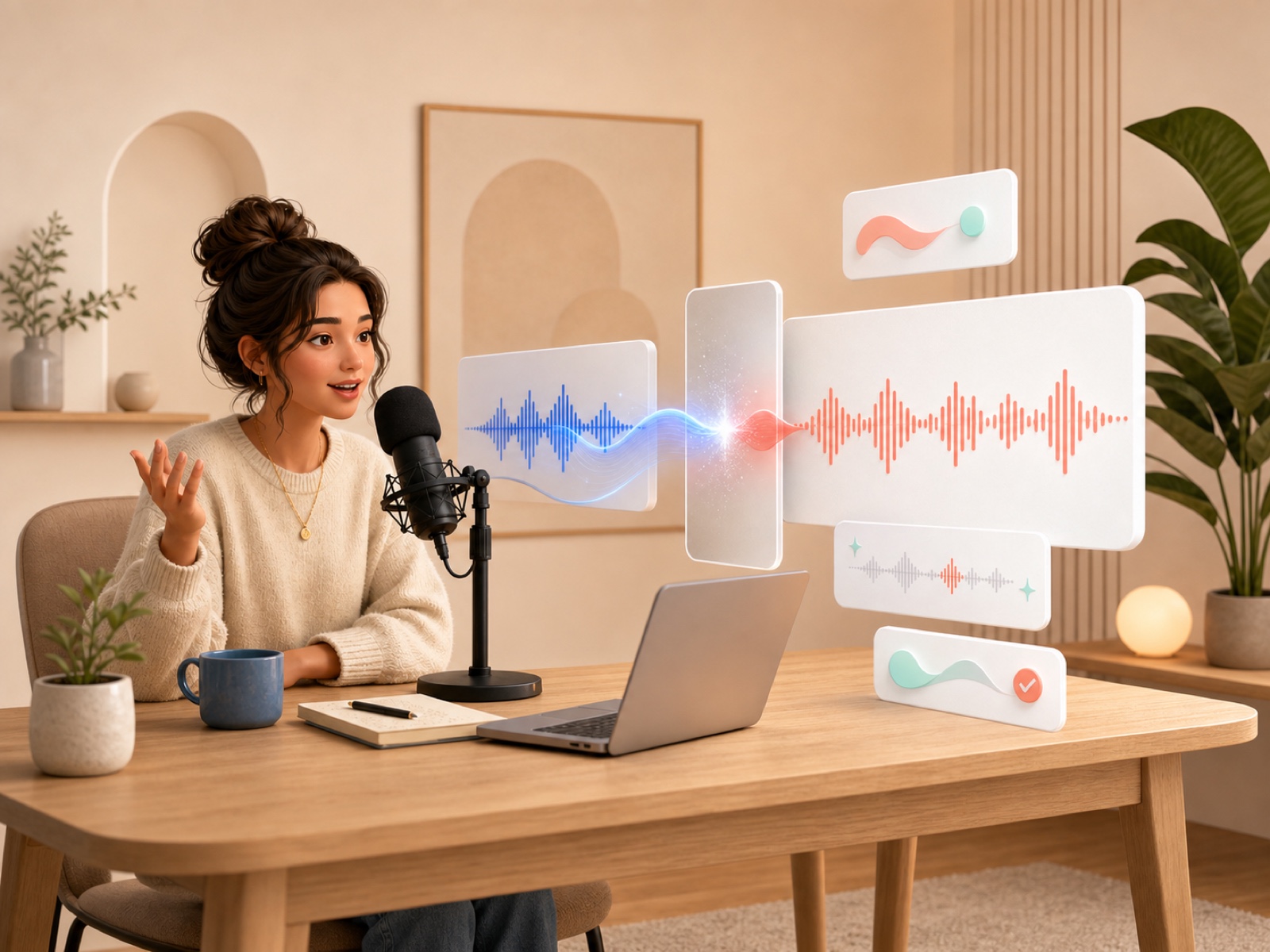
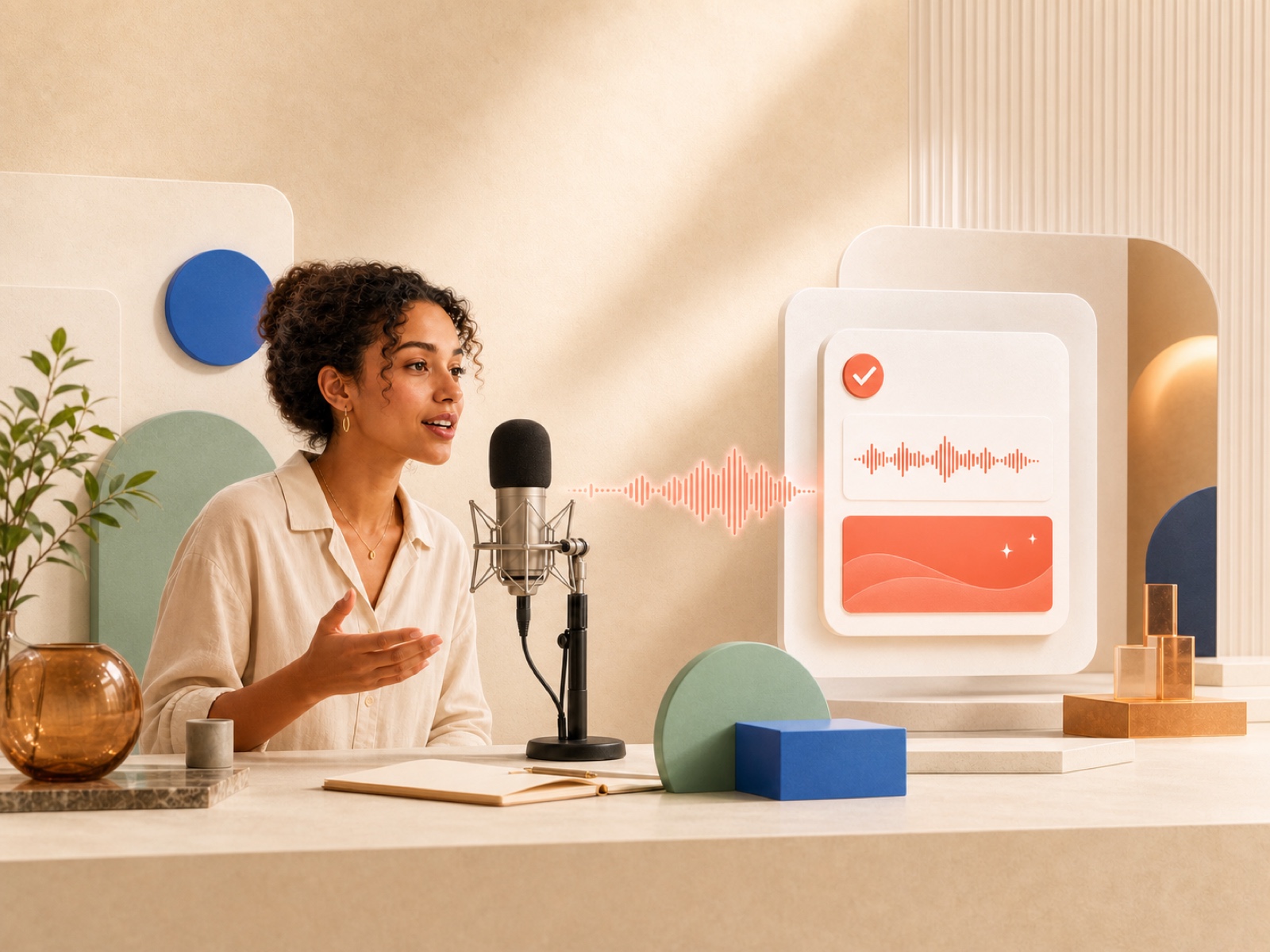
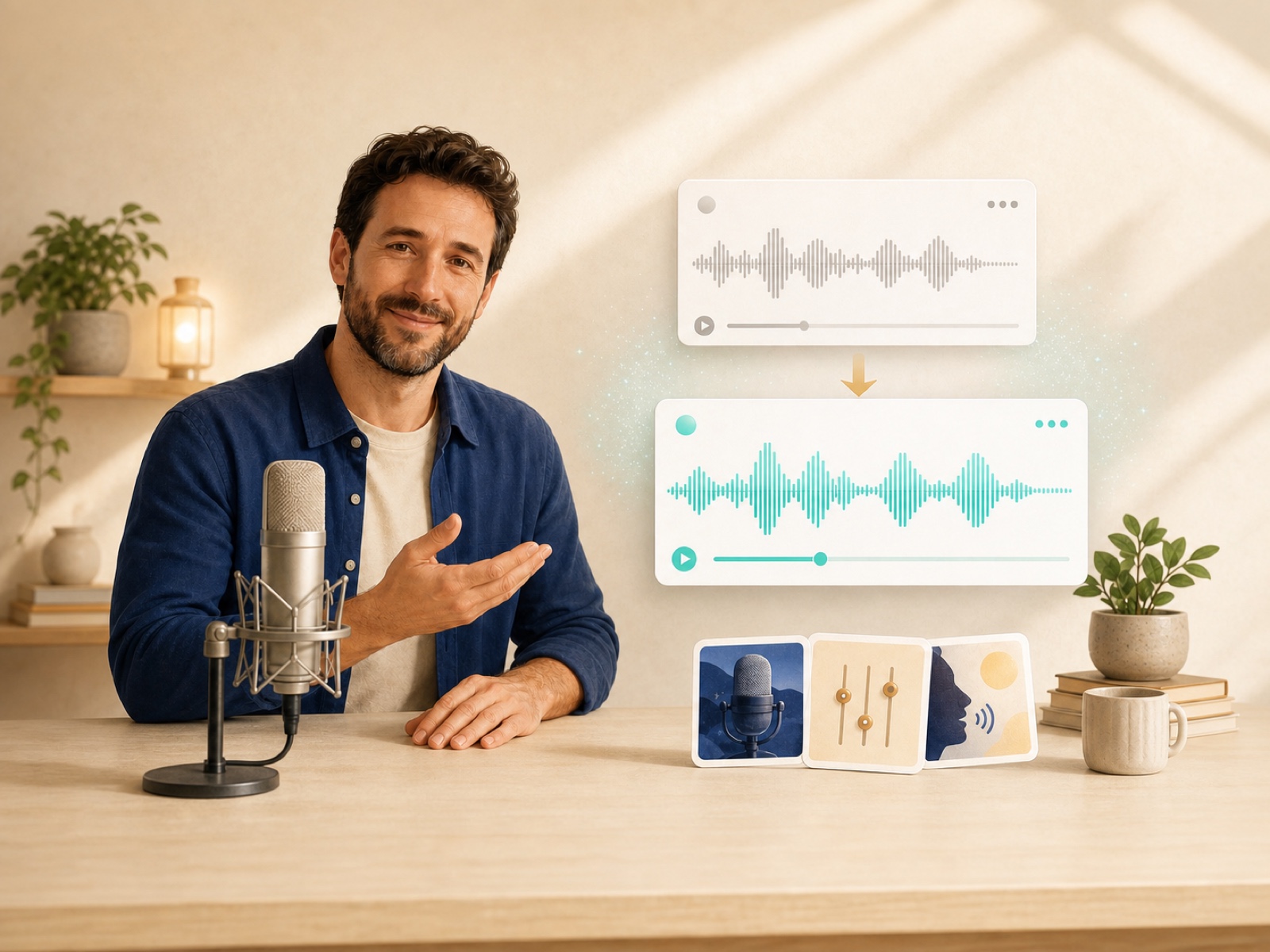
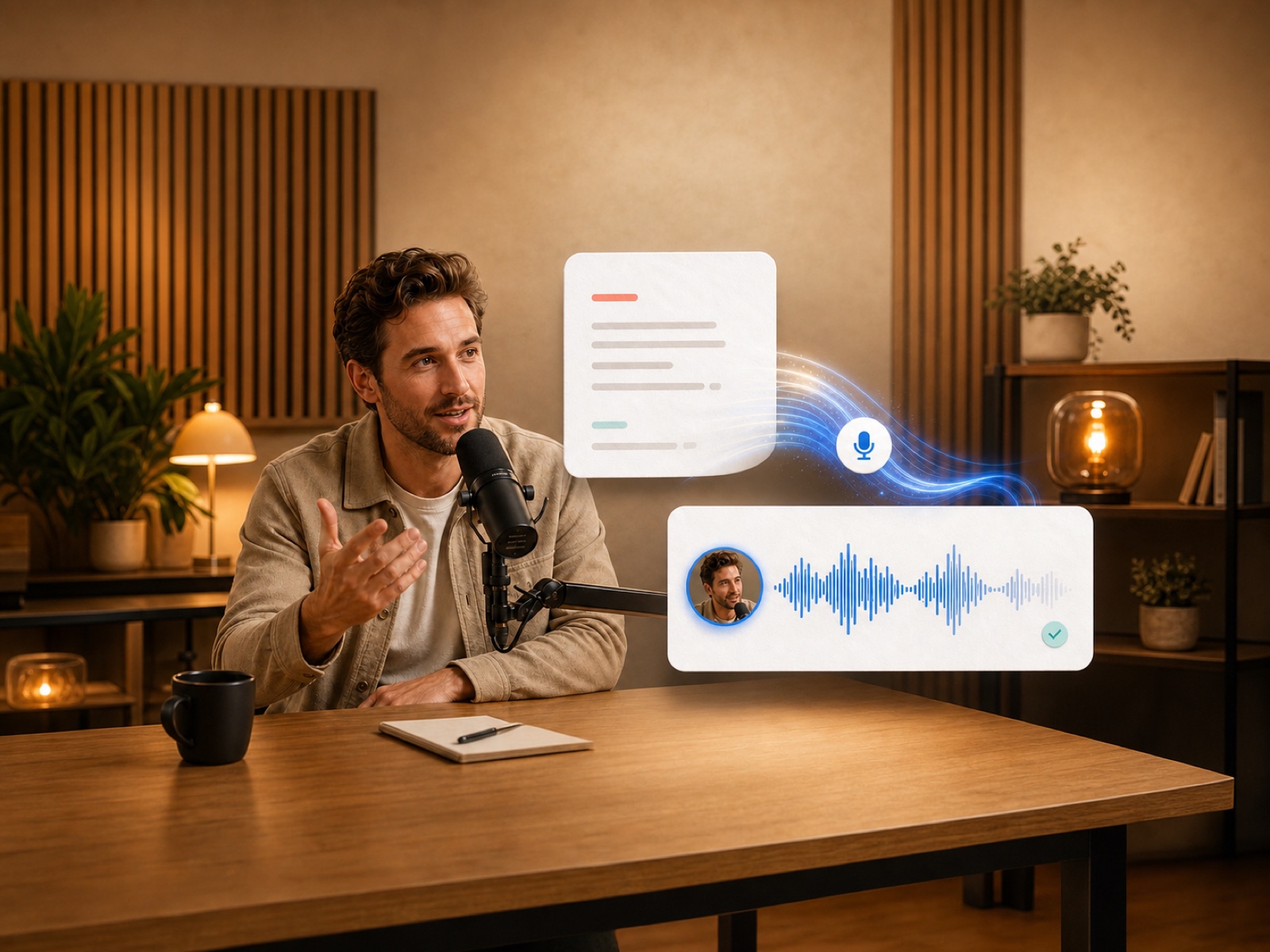
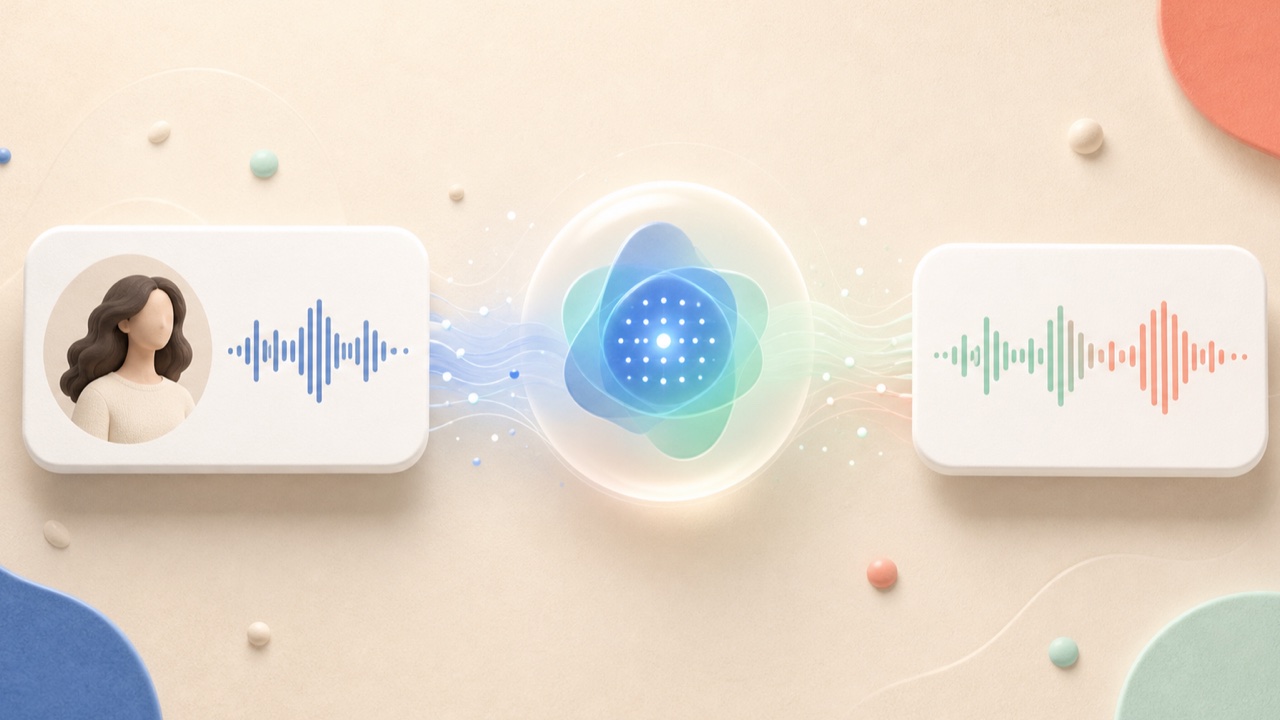
AI voice cloning uses a reference recording to reproduce recognizable speaker traits while reading text that was not present in the original clip. Mivo Sync creates a new audio result for each request instead of enrolling a permanent voice profile.
Unlike a general AI voice generator that starts from a preset or designed voice, voice cloning starts from a specific speaker sample. It also differs from a voice changer, which transforms an existing recording, and ordinary text-to-speech, which does not try to reproduce that speaker's identity.
minimum sample
output languages
maximum upload
permission required
Clone a voice when the speaker is approved but the script still changes after recording day.
Fix a name, date, instruction, or call to action without rebuilding the microphone setup. Paste the corrected sentence and export a replacement audio clip for the edit.
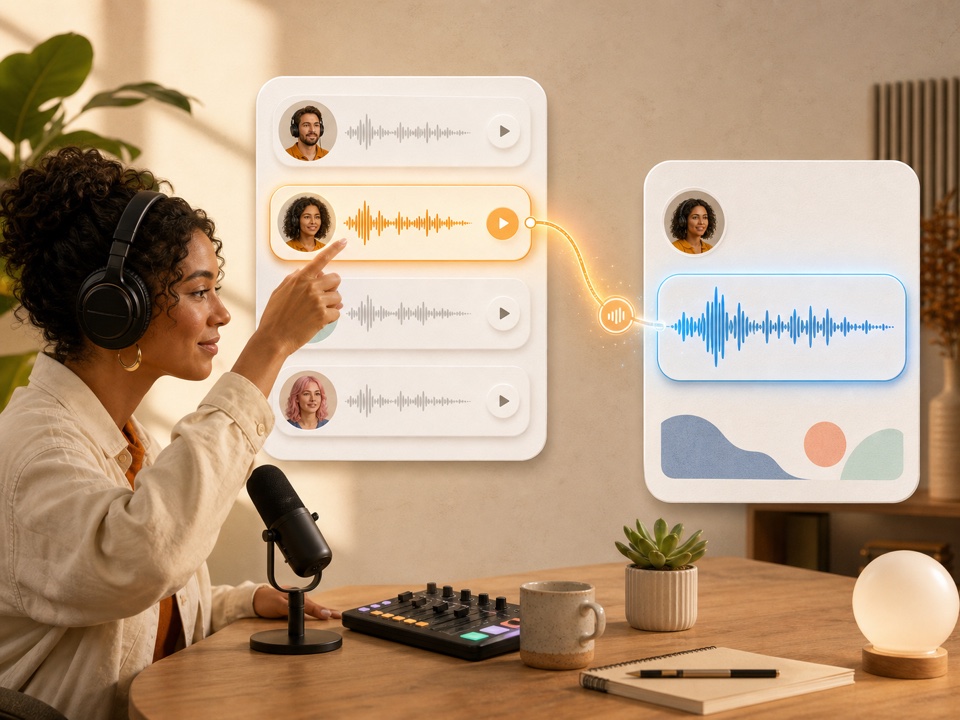
Replace an outdated instruction without asking the instructor to re-record a full module. Generate the changed line, review it, and place it in the existing lesson timeline.
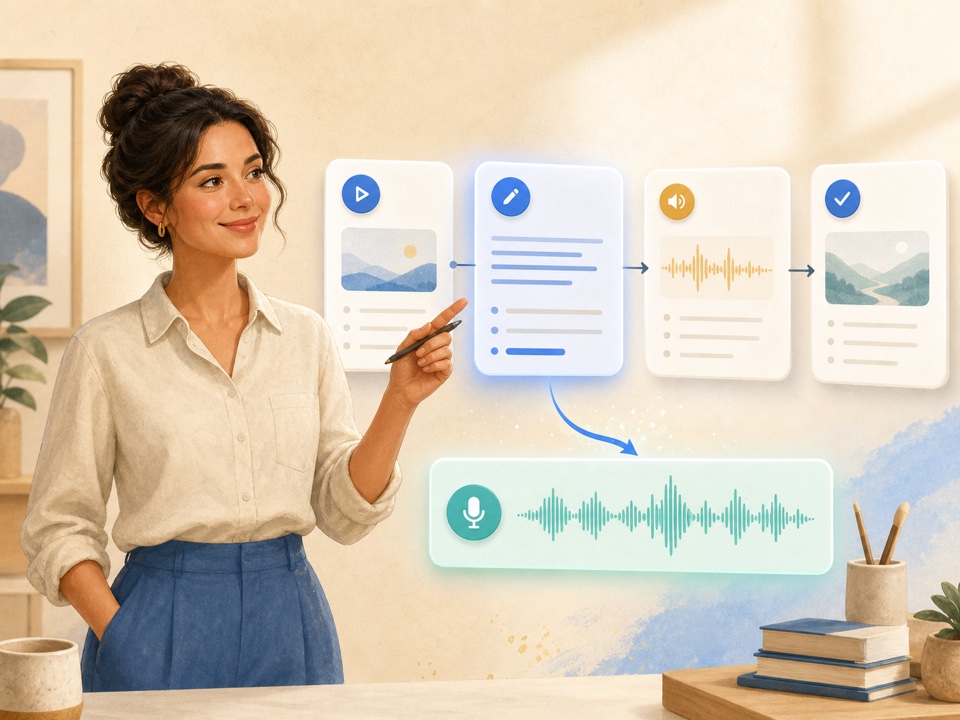
Prepare an approved intro, correction, sponsor line, or closing message from a host reference without scheduling another recording session.
Keep the same recognizable speaker across English, Chinese, Japanese, Korean, French, German, Italian, Spanish, Portuguese, or Russian campaign scripts.
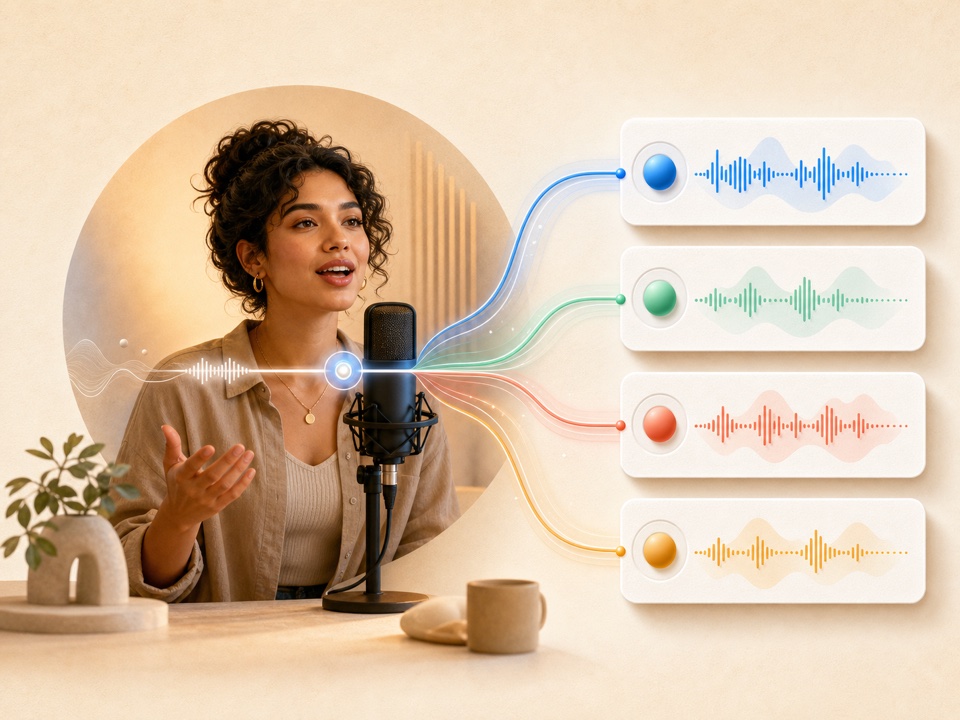
Start with permission and a clean sample, then create one reviewed audio result from your script.
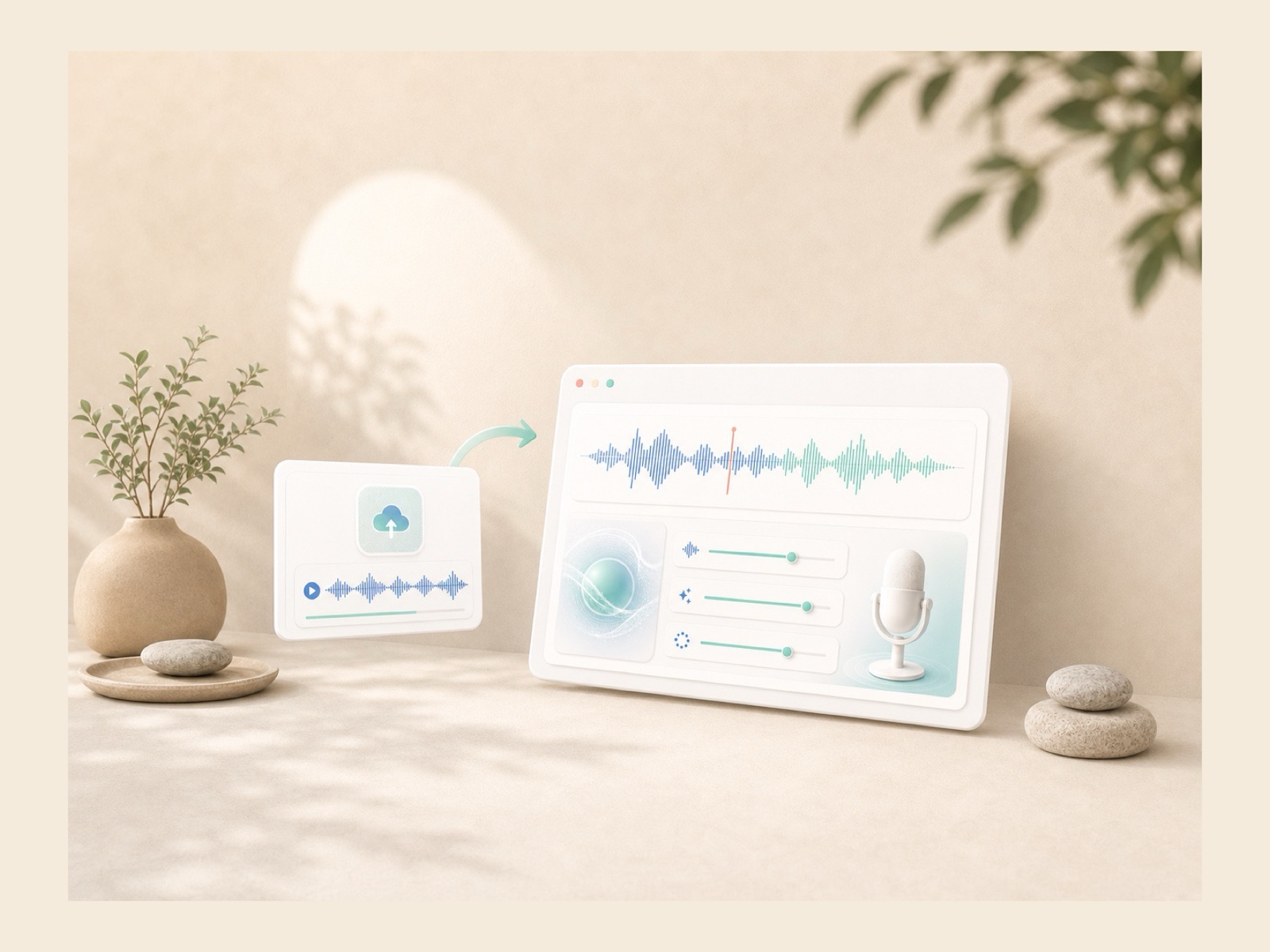
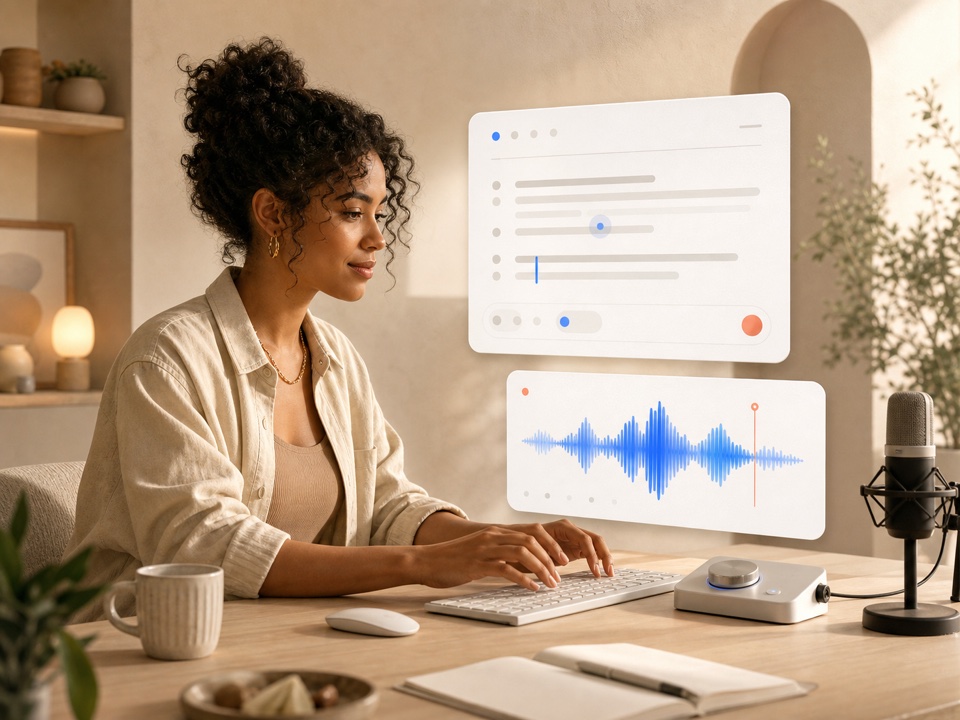
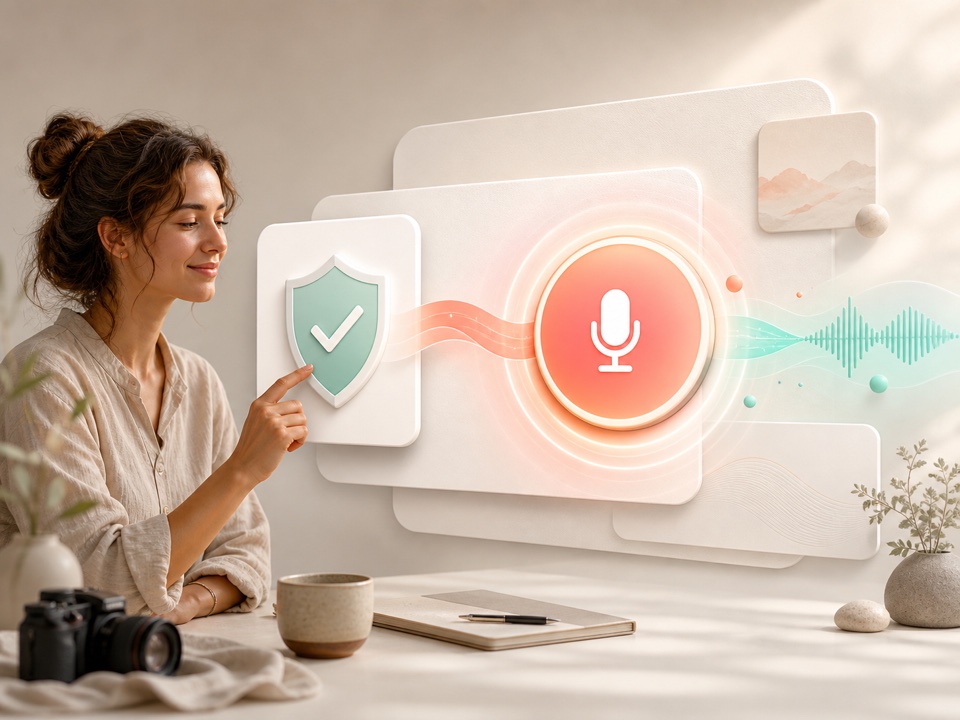
Authorization, input quality, retention, and result storage are part of the workflow—not hidden conditions after submission.
Every request requires confirmation that you own the voice or have explicit permission from the speaker. Do not use cloned speech for impersonation, fraud, harassment, or deceptive content.
Use 3–30 seconds of speech in an accepted audio format, keep the upload under 20 MB, and choose a clip with one clear speaker. Source quality directly affects the generated result.
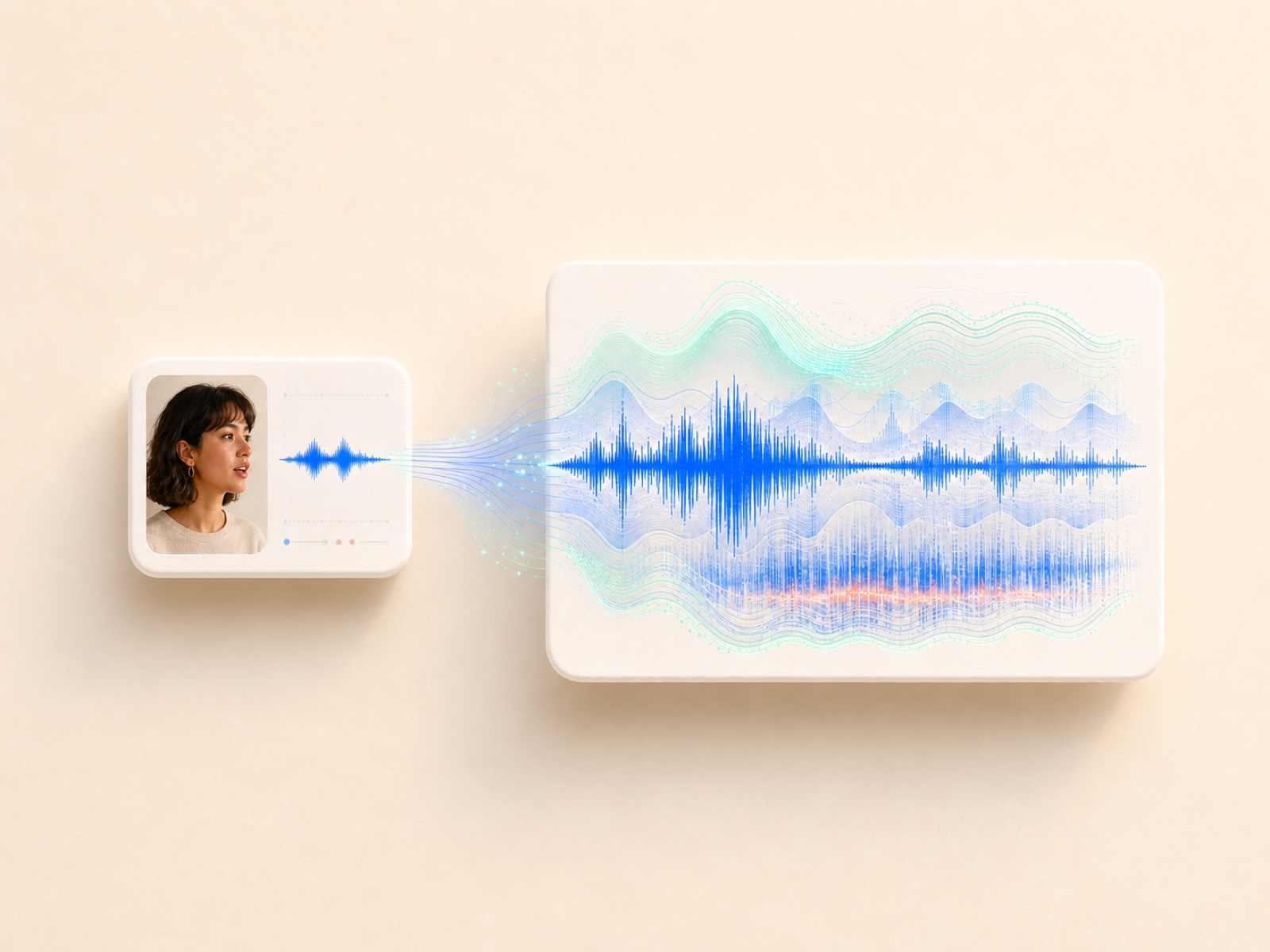
Confirmed temporary AI inputs enter Mivo Sync's seven-day cleanup lifecycle. This applies to the reference material used to run the task, not to a successful result saved in your account.
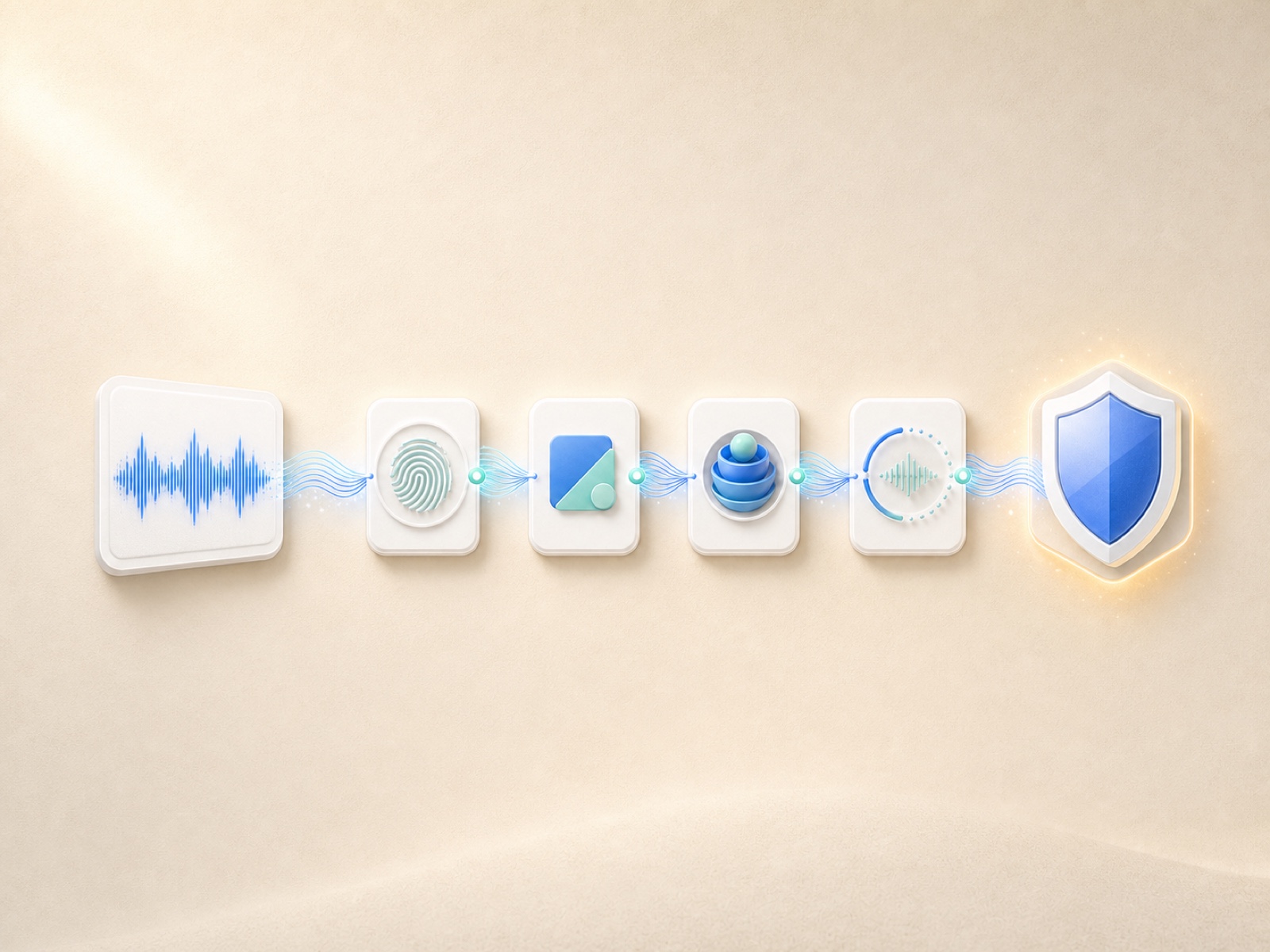
When generation succeeds, the audio result is stored in your account's asset library. You can preview or download it from the result panel and return to the saved asset later.
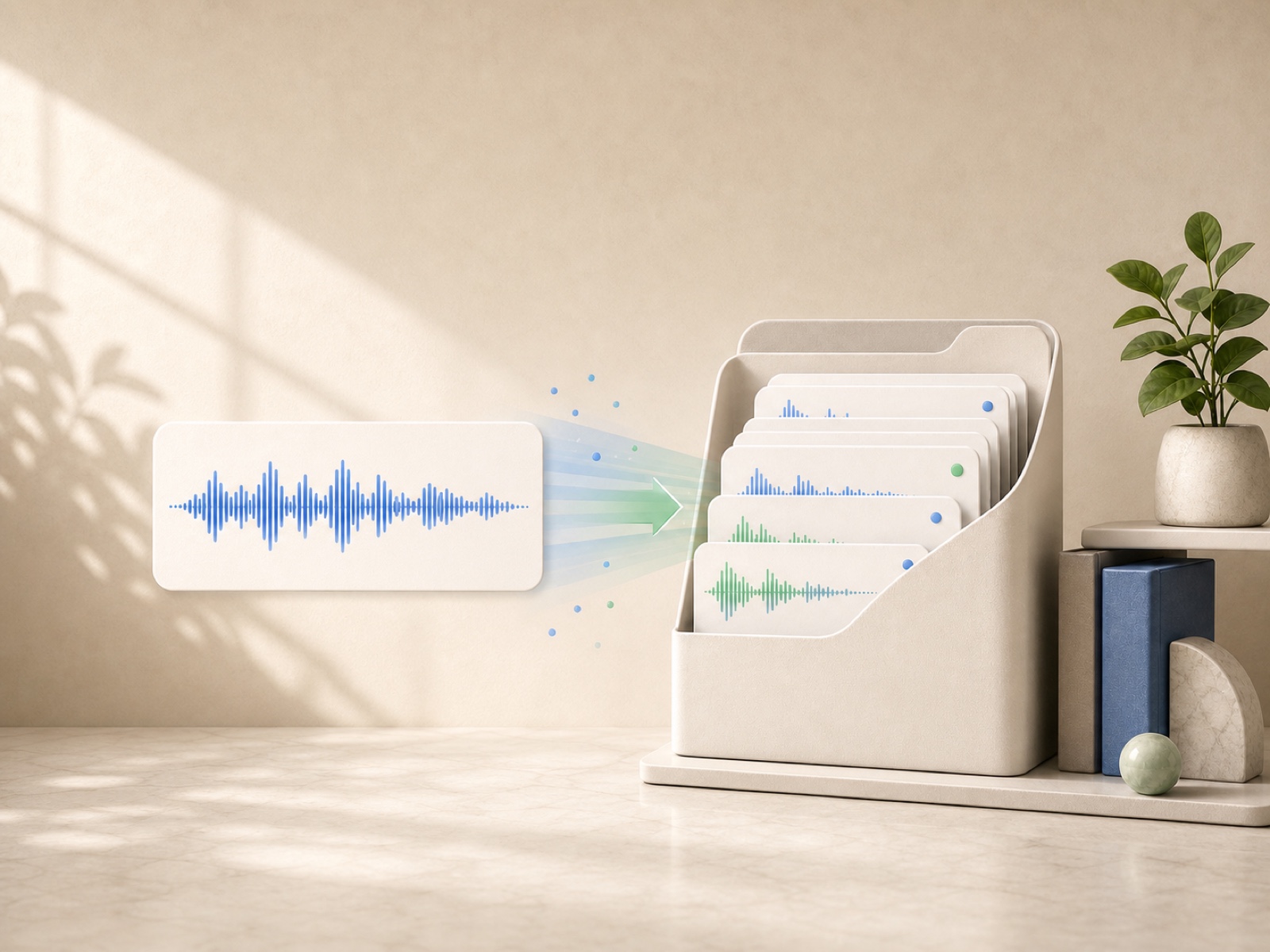
Three practical ways people use an authorized reference voice when a script changes after recording.
I use the clone to patch a sentence after a lesson is recorded. Matching the original delivery keeps me from reopening the whole recording setup.

For podcast corrections, a short clean reference clip gives me a practical way to replace one line without rerecording the complete segment.

The language controls help our training updates keep one approved voice across regional versions, while the authorization step keeps the workflow clear.

Upload one clean sample, type the new line, and hear the result without setting up another recording session.